Understanding HTML Tags and Elements
What is HTML and Why We Use It
HTML stands for HyperText Markup Language. It's the skeleton of every webpage you've ever visited. While CSS makes things look pretty and JavaScript makes things interactive, HTML provides the structure and content.
Think of building a house. HTML is the foundation, walls, and rooms. CSS is the paint, furniture, and decoration. JavaScript is the electrical wiring and plumbing that makes things work. You can't have a house without the structure first.
HTML tells the browser what content to display and how that content is organized. It marks up text to say "this is a heading," "this is a paragraph," "this is a link," "this is an image." The browser then renders that markup into the webpage you see.
Without HTML, websites would just be plain text files with no structure, no links, no images, nothing. HTML is the foundation of the entire web.
What is an HTML Tag?
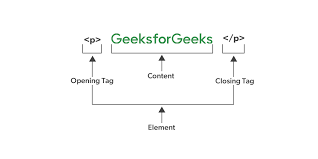
A tag is a keyword wrapped in angle brackets that tells the browser what kind of content follows. Tags are like labels on containers. They tell the browser "hey, this thing here is a paragraph" or "this thing here is a heading."
Tags come in pairs (mostly). An opening tag starts something, and a closing tag ends it. It's like putting bookends on either side of books on a shelf.
Opening Tag
An opening tag looks like this: <p>
The tag name is p (which stands for paragraph). The angle brackets tell the browser "this is a tag, not regular text."
Closing Tag
A closing tag looks like this: </p>
It's the same as the opening tag but with a forward slash before the tag name. The slash means "end this tag."
Content
Content is whatever goes between the opening and closing tags:
<p>This is a paragraph of text.</p>
Here, "This is a paragraph of text." is the content. The browser will display it as a paragraph.
HTML Element: The Complete Package
An element is the complete set: opening tag + content + closing tag.
<p>This is a paragraph.</p>
This entire thing is called a paragraph element. The terms "tag" and "element" are often used interchangeably, but technically:
Tag refers to just the <p> or </p> part. Element refers to the whole thing including the content.
Think of it like this: a tag is like the quotation marks, while the element is the entire quoted sentence including the quotes.
Nested Elements
Elements can contain other elements:
<div>
  <h1>Welcome</h1>
  <p>This is a paragraph inside a div.</p>
</div>
The div element contains an h1 element and a p element. It's like Russian dolls, boxes within boxes.
Self-Closing (Void) Elements
Some elements don't have content, so they don't need a closing tag. These are called void elements or self-closing elements.
Image Tag
<img src="photo.jpg" alt="A photo">
There's no closing </img> tag because an image doesn't contain content between tags. The image itself is specified in the src attribute.
Line Break
<br>
A line break doesn't wrap around content. It just creates a break. No closing tag needed.
Horizontal Rule
<hr>
This creates a horizontal line. It's a standalone element.
Input Field
<input type="text" placeholder="Enter name">
Input fields are interactive elements that don't contain content between tags.
You might occasionally see self-closing tags written with a trailing slash like <img /> or <br />. This was required in older XHTML but is optional in modern HTML5. Both <img> and <img /> work fine.
Block-Level vs Inline Elements
HTML elements fall into two main categories based on how they behave on the page.
Block-Level Elements
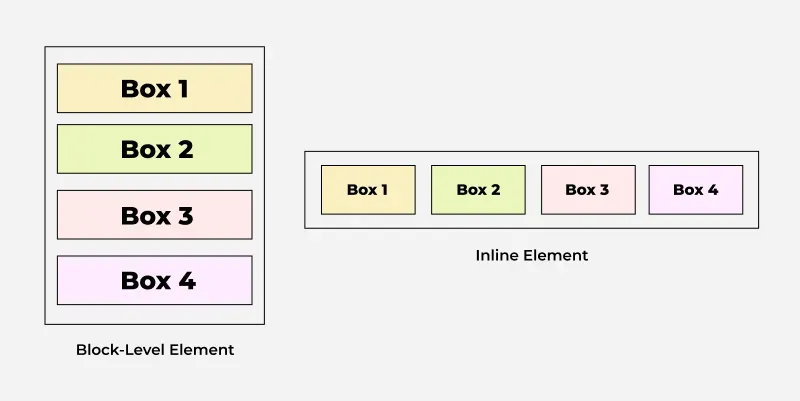
Block-level elements take up the full width available and start on a new line. They're like building blocks stacked vertically.
<div>First block</div>
<div>Second block</div>
<p>Third block</p>
This renders as:
First block
Second block
Third block
Each element takes the full width and stacks vertically, even if the text inside is short. It's like paragraphs in a Word document where each paragraph starts on a new line.
Common block-level elements: div, p, h1 through h6, ul, ol, li, section, article, header, footer
Inline Elements
Inline elements only take up as much width as their content needs and don't start a new line. They flow with the text like words in a sentence.
<p>This is <strong>bold text</strong> and this is <em>italic text</em> in the same line.</p>
The strong and em elements don't break the flow. They sit inline with the surrounding text.
Common inline elements: span, a, strong, em, img, code, br
Visual Difference
Block elements are like Lego bricks stacked on top of each other. Each brick takes the full width of the base. Inline elements are like beads on a string. They sit next to each other in a line until there's no more room, then they wrap to the next line.
Commonly Used HTML Tags
Headings
<h1>Main Heading</h1>
<h2>Subheading</h2>
<h3>Smaller Subheading</h3>
<h4>Even Smaller</h4>
<h5>Smaller Still</h5>
<h6>Smallest Heading</h6>
Headings go from h1 (most important) to h6 (least important). Use them to create a hierarchy of content, like chapter titles and subtitles in a book.
Paragraph
<p>This is a paragraph of text. It can be as long or short as you need.</p>
Use paragraphs for blocks of text. Each paragraph is a block-level element.
Division
<div>
  <h2>A Section</h2>
  <p>Some content in this section.</p>
</div>
div is a generic container with no semantic meaning. It's useful for grouping elements together for styling or layout purposes. Think of it as a box that holds other elements.
Span
<p>This is <span style="color: red;">red text</span> in a paragraph.</p>
span is a generic inline container. Use it when you need to style or manipulate part of a text without breaking the flow.
Link
<a href="https://example.com">Click here</a>
The a tag creates a hyperlink. The href attribute specifies where the link goes. This is how you navigate between pages on the web.
Image
<img src="photo.jpg" alt="Description of the image">
Displays an image. The src attribute is the image file path. The alt attribute provides text for screen readers and displays if the image fails to load.
Lists
Unordered list (bullet points):
<ul>
  <li>First item</li>
  <li>Second item</li>
  <li>Third item</li>
</ul>
Ordered list (numbered):
<ol>
  <li>First step</li>
  <li>Second step</li>
  <li>Third step</li>
</ol>
ul and ol are the list containers. li (list item) is each individual item.
Text Formatting
<strong>This text is bold</strong>
<em>This text is italic</em>
<code>console.log('code')</code>
strong indicates important text (renders bold by default). em indicates emphasized text (renders italic by default). code indicates code snippets.
Line Break and Horizontal Rule
<p>First line<br>Second line</p>
<hr>
<p>Content after a horizontal line</p>
br creates a line break within text. hr creates a horizontal dividing line.
Input and Button
<input type="text" placeholder="Enter your name">
<button>Submit</button>
input creates form input fields. button creates clickable buttons. These are the basics of interactive forms.
Simple Complete Example
<!DOCTYPE html>
<html>
<head>
  <title>My First Page</title>
</head>
<body>
  <h1>Welcome to My Website</h1>
  <p>This is my <strong>first</strong> webpage.</p>

  <h2>About Me</h2>
  <p>I'm learning HTML. Here's what I like:</p>
  <ul>
    <li>Coding</li>
    <li>Coffee</li>
    <li>Cricket</li>
  </ul>

  <hr>

  <p>Visit <a href="https://google.com">Google</a> for more info.</p>
</body>
</html>
This creates a simple webpage with headings, paragraphs, a list, and a link.
Inspecting HTML in the Browser
Every browser lets you inspect the HTML of any webpage. This is the best way to learn.
Right-click on any webpage and select "Inspect" or "Inspect Element." The browser opens developer tools showing the HTML structure. Hover over elements in the code to highlight them on the page. Click elements to see their tags, attributes, and structure.
Try it on any website. You'll see how professional sites are built using the same basic HTML tags you just learned.
The Takeaway
HTML is just text with tags. Tags tell the browser what type of content something is. Elements are the complete package of opening tag, content, and closing tag. Some elements are self-closing because they don't wrap content. Block elements stack vertically, inline elements flow horizontally. All websites are built from these simple building blocks.
Start simple. Create an HTML file, add some tags, open it in a browser. That's literally how every web developer started. The complexity comes later, but the foundation is just tags and content.
Comments
Join the discussionNo comments yet. Be the first to comment.